

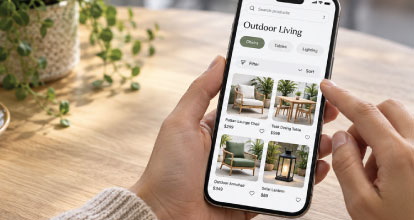
A customer opens your store on their phone with a product in mind. They might know exactly what they want, have a general idea or need help understanding the available options.
Your navigation needs to support each of those starting points.
For eCommerce merchants, mobile navigation influences how easily customers move from interest to a relevant product. Menus, search, category pages and filters all contribute to that journey.
When these elements work together, customers can explore confidently. When they create confusion, shoppers spend their time working out how to use the website instead of deciding what to buy.
Organise navigation around how customers shop
The structure of your catalogue should reflect the language and decisions of your customers.
Internal departments, supplier names and technical classifications might make sense to your team, but they do not always provide useful directions for shoppers.
A customer looking for shade beside a swimming pool might start with “Outdoor umbrellas” or “Poolside umbrellas.” They may not yet understand the difference between a cantilever model and a centre-post design.
A trade buyer, meanwhile, might know a product code and want to reach that item immediately.
Support these different approaches through clear categories, helpful descriptions and accessible search. Where specialist terminology is necessary, explain it briefly.
Customer enquiries, search terms and conversations with sales staff can help identify the words people naturally use.
Give the mobile menu a clear structure
A mobile menu should make the main product categories easy to identify and explore.
Prioritise shopping destinations, then organise supporting links such as account access, delivery information and contact details around them. A long, undifferentiated list makes customers examine every option before deciding where to go.
Use a consistent hierarchy. If customers open “Outdoor furniture,” the next level should contain recognisable choices such as tables, chairs and lounges.
Provide an obvious way to return to the previous level and make the current category clear. Customers should not need to close the menu and start again after taking a wrong turn.
Include a “Shop all” option where useful. Someone who is unsure which subcategory fits their needs should still be able to explore the broader range.
Make search easy to find
Some customers arrive ready to search, particularly when they know a product name, brand or model number.
Give search a clear, accessible position in the mobile header. Depending on the store and its customers, a visible search field may be more useful than an icon alone.
Once search opens, provide a comfortable input field, an obvious way to clear the query and a straightforward route back to browsing.
Keep search available throughout the shopping journey. A customer who reaches the wrong category or product should be able to change direction without returning to the homepage.
The search experience should also retain the entered query so customers can refine it rather than type everything again.
Help customers search in their own words
Customers will not always use the exact wording found in your catalogue.
They may enter an abbreviation, an alternative product name or a description of what they need. Someone might search for “garden parasol” when your products are listed as “outdoor umbrellas.”
Build support for relevant synonyms and common spelling mistakes where your search system allows it. For technical catalogues, product codes and model numbers deserve particular attention.
Search suggestions can help customers reach a relevant destination before completing their query. Keep suggestions readable and distinguish between products, categories and other results.
Review unsuccessful searches regularly. A search with no results may reveal missing terminology, incomplete product data or demand for something the store does not sell.
When no suitable result exists, offer useful next steps: related categories, a revised search or a route to product advice.
Make category pages useful decision points
A category page should help customers understand the range and begin narrowing it.
Use a clear heading and, where necessary, a short explanation of the category. Avoid placing lengthy introductory copy between the customer and the products.
For broad categories, relevant subcategory links can provide a useful shortcut. A shopper browsing outdoor umbrellas might want to choose between cantilever, centre-post and commercial models before reviewing individual products.
Product cards should then contain enough information to support the next decision. That usually includes a recognisable image, a clear product name and a price, with additional details selected for the category.
For furniture, dimensions or material may be helpful. For replacement components, compatibility or a model reference may matter more.
The aim is to help customers identify promising products without opening every result.
Build filters around meaningful product differences
Filters are useful when they reflect the criteria customers actually use to choose.
A clothing store might prioritise size, colour, fit and price. An equipment supplier may need filters for dimensions, capacity, power requirements or compatibility.
Avoid filling the filter panel with attributes that offer little practical distinction. Each option should help customers reduce the range in a meaningful way.
Product data needs to support this consistently. If equivalent dimensions are recorded in different formats, or important attributes are missing, filtering can hide suitable products.
Merchants should treat filter quality as both a design task and a catalogue-management task. A polished interface cannot compensate for incomplete information.
Make filtering manageable on a phone
Mobile filters need enough space for customers to understand and select their options.
Use clear labels, comfortable controls and a visible way to apply selections or return to the results. If filters update immediately, make that behaviour apparent.
Show active filters on the results page and allow customers to remove them individually. Include a clear way to reset the selection when they want to explore more broadly.
Where practical, indicate how many products match the selected criteria. If a combination produces no results, explain what happened and make it easy to remove a restriction.
Keep sorting distinct from filtering. “Price: low to high” changes the order of products; choosing a price range changes which products appear. Customers should be able to understand and control both.
Preserve progress as customers compare products
Product discovery rarely follows a straight line.
A customer might filter a category, scroll through several rows, inspect a product and return to compare another. Their selections and position should remain intact.
Losing filters or returning to the top of the list creates repeated work. On a phone, that can mean several extra swipes simply to resume browsing.
Preserve search queries, sorting choices and relevant browsing state where possible. Test the browser’s back button as well as links within the site.
If the store uses “Load more” or continuous scrolling, check what happens after a customer visits a product and returns. They should be able to continue from a recognisable point.
Help customers understand where they are
Customers can arrive deep inside a catalogue from advertisements, search engines or shared links.
Give them enough context to understand the product’s place in the range and explore related options.
A clear category heading and a readable breadcrumb trail can help. On smaller screens, these elements need careful spacing and sensible handling of long category names.
A product page should also provide a useful route back to its category. If the item is unsuitable, customers need an easy way to find alternatives.
Use descriptive links such as “View all cantilever umbrellas” when that makes the destination clearer.
Keep promotional elements from interrupting discovery
Navigation competes for screen space with announcement bars, promotional banners, chat buttons and pop-ups.
Review how these elements behave together on a real phone. Several individually small additions can leave little room for products or controls.
Check that overlays do not cover menu buttons, filter actions or search suggestions. Customers should be able to close a promotional message easily and continue from where they were.
Timing also matters. An offer that appears while someone is typing a search or selecting filters can interrupt a task already in progress.
Give customers room to explore the catalogue before asking them to respond to additional messages.
Make navigation comfortable and accessible
Menus and filters should work for customers using touch, keyboards and assistive technology.
Use readable text, descriptive control labels and clear indicators for expanded sections and selected options. Avoid relying on colour alone to communicate a selection.
Interactive elements need sufficient space to reduce accidental taps. Pay particular attention to close buttons, small arrows and filter checkboxes.
When a menu or filter panel opens, make sure customers can navigate within it and return to the page predictably. Closing the panel should restore them to a sensible point in their journey.
Accessibility is part of making the store easier to use across different devices and circumstances.
Measure whether customers can find suitable products
Navigation changes should be assessed against real shopping tasks.
Ask someone unfamiliar with the store to find a product within a budget, locate a specific model and compare two suitable alternatives. Observe where they hesitate, change direction or ask what a label means.
Use site data to investigate those patterns. Useful signals include frequent searches with no results, repeated query changes and filter combinations that produce empty lists.
Interpret the numbers in context. More clicks might indicate productive exploration or difficulty finding the right category. A short visit might mean someone found an answer quickly or gave up.
Combine behaviour data with direct observation to understand what needs improvement.
Build a clear route from discovery to purchase
Effective mobile navigation helps customers make progress at every stage.
The menu introduces the range. Search supports direct requests. Category pages explain the choices. Filters narrow the options, and consistent navigation allows customers to compare without losing their place.
For merchants, the work starts with understanding how customers describe products and what they need to decide between them. Clear structure, reliable product data and thoughtful mobile interactions turn that understanding into a more useful shopping experience.
When customers can find suitable products with less effort, they can spend more attention on choosing what to buy.