

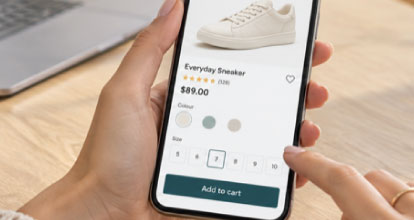
A customer arrives on your product page after tapping a search result, an advertisement or a link shared by a friend. They are interested enough to take a closer look, but they still have questions.
Is this the right product? Which size or configuration do they need? What does it cost? When will it arrive?
On a phone, your product page needs to answer those questions within a limited amount of screen space. Images, descriptions, product options and purchase buttons all compete for attention.
For eCommerce merchants, the task is to organise that information so customers can understand the product, make their selections and move towards purchasing with confidence.
Start with the customer’s buying decision
A useful mobile product page begins with an understanding of what customers need to know before purchasing.
Those requirements vary by product. Someone buying clothing might prioritise fit, fabric and returns. A customer choosing an outdoor umbrella needs dimensions, mounting requirements and information about suitable conditions. A trade buyer ordering a replacement component needs an exact specification and confirmation of compatibility.
The page should reflect those priorities.
Review the questions your customer service team receives, the reasons products are returned and the information sales staff regularly explain. These are useful inputs for deciding what deserves prominence.
If customers repeatedly ask whether a base is included, that answer belongs close to the product options and price. If compatibility determines whether an item is usable, make it easy to check before adding the product to the cart.
Give the first screen a clear purpose
The first screen should help customers confirm that they have reached the right product and understand how to explore it.
A recognisable product image, a clear name and an indication of price provide a useful starting point. The balance will depend on the product and the length of its title, but oversized headers and promotional banners should not overwhelm the product itself.
Avoid trying to squeeze every detail into this opening view. Small text and crowded controls can make the page harder to use.
Instead, establish a clear sequence: introduce the product, explain the important choices and guide the customer towards the next action. Let the layout signal that more information is available below.
Use photography that answers practical questions
Product photography should help customers judge what they are buying.
A clean main image establishes appearance. Additional images can explain scale, materials, construction and how the product works in context.
For an outdoor umbrella, a useful gallery might show the canopy open, the operating mechanism, the base connection and the umbrella positioned beside outdoor furniture. Each view answers a different question.
Make additional images easy to discover, with visible gallery controls or a clear indication that more views are available. Allow customers to enlarge images and inspect details without losing their place on the page.
When a customer selects a different colour or finish, update the imagery where possible. Keep the selected option clearly labelled so customers can confirm that the image and their choice match.
Make product options easy to understand
Selecting a size, colour or configuration should feel straightforward.
Use descriptive labels and clearly distinguish selected, available and unavailable options. A colour swatch should have a readable colour name, and a size selection should provide convenient access to relevant measurements.
Explain options that customers may not recognise. Terms familiar to your buying team or suppliers can be confusing to someone purchasing the product for the first time.
Selections should also update the relevant information. If a larger model costs more, show the revised price. If a particular finish has a longer lead time, display that change before the customer adds it to their cart.
Where a selection is required, provide a specific prompt such as “Choose a canopy colour.” Place it beside the relevant control so the customer can resolve it immediately.
Put delivery information close to the purchase decision
Customers need to understand the practical cost and timing of an order.
A product price alone may leave important questions unanswered, particularly for bulky goods, urgent purchases or products with different dispatch arrangements.
Near the buying controls, provide a concise summary of availability, dispatch timing and and delivery charges—or a clear way to estimate them. A postcode checker can be useful when costs and service availability depend on location.
Distinguish dispatch from delivery. “Dispatches in two business days” communicates something different from “Delivered within two business days.”
Conditions should be equally clear. If free shipping requires a minimum spend or excludes certain locations, explain that alongside the offer. Baymard’s product-page research highlights how easily shoppers can overlook shipping information when it appears only in a site-wide banner.
Write descriptions for scanning and closer reading
Mobile customers should be able to find a quick answer and explore further when they need more detail.
Start with a concise description of what the product does, who it suits and its main benefits. Follow with clearly labelled sections for specifications, dimensions, care, installation and other relevant information.
Use concrete language. “Powder-coated aluminium frame” tells a customer more than “premium construction.” Explain why a feature matters when that connection is not obvious.
Expandable sections can help organise longer content. Labels such as “Dimensions and weight” or “Delivery and returns” make their contents easier to predict than a generic “More information.”
Keep essential purchase conditions visible. A required accessory, compatibility restriction or made-to-order condition should be apparent before purchase.
Make the add-to-cart action easy to use
The main purchase button should be visually distinct, clearly labelled and positioned near the controls customers need to complete first.
After a customer taps it, provide a clear response. Confirm that the item was added, show the selected variant and quantity, and offer a straightforward route to the cart.
For longer pages, a sticky add-to-cart bar may help customers act after reviewing specifications or reviews. Its usefulness depends on the implementation.
It should reflect the current price and selection, direct customers to any missing options and leave enough room to read the page. Test how it interacts with chat widgets, cookie notices and the phone’s keyboard.
A persistent button earns its place when it makes purchasing easier without obstructing the information customers are trying to read.
Design controls for fingers and accessible use
Small, tightly packed controls can make even a simple purchase frustrating.
Give variant selectors, gallery buttons and quantity controls enough space to be tapped accurately. Ensure text is readable, selected states are clear and colour is supported by labels or other visual cues.
Customers should also be able to navigate controls with assistive technology and enlarge the page without losing access to essential functions.
WCAG 2.2 includes a minimum pointer-target criterion of 24 × 24 CSS pixels, subject to exceptions. That is a baseline rather than a reason to make important shopping controls as small as possible.
Accessibility should be considered throughout the buying journey, including option selection, validation messages and cart confirmation.
Keep the page responsive as content loads
Photography, video, reviews and third-party widgets can make product pages useful, but they also add loading work.
Serve images at suitable sizes and use compression that preserves the detail customers need. Responsive images allow the browser to choose an appropriate image source for the device and display size.
Prioritise the main product content and assess which additional features need to load immediately. Reserve space for images and embedded content so controls do not jump as the page renders.
Performance testing should include interaction as well as initial loading. Check how quickly a variant change updates the price, whether the image gallery responds promptly and how long cart confirmation takes.
Use real phones and representative mobile connections alongside development tools. A page that feels comfortable on an office computer can behave differently on a customer’s device.
Give reviews and supporting products the right role
Reviews can help answer questions about fit, quality, assembly and everyday use.
Make the rating summary easy to locate and provide a direct route to the review section. Where your review system supports it, let customers find feedback relevant to their intended use.
Supporting products also deserve careful placement. A required mounting kit should be explained near the purchase controls. Optional accessories can appear later, once the customer understands the main item.
Distinguish clearly between what is included, what is required and what is simply recommended. This helps customers build a complete order without feeling uncertain about the advertised price.
Test complete buying tasks
A useful mobile review follows a customer’s task from beginning to end.
Ask someone unfamiliar with the store to choose a product, compare two variants, check dimensions, estimate delivery and add the correct configuration to their cart.
Observe where they pause, scroll backwards or ask for help. Check whether selections remain intact after they open a size guide, inspect an image or return from the cart.
Measure the wider outcome when making changes. Add-to-cart activity is useful, but completed purchases, selection errors, support enquiries and returns can reveal whether the page is helping customers make better decisions.
A successful mobile product page makes the product understandable and the next step clear. When customers can check the details that matter, select confidently and see what happens next, buying on a smaller screen becomes much easier.